Layout Configuration
The email layout is the visual template that frames all the content of your emails. It’s like your website design, but for email: it provides a consistent structure, reinforces your brand, and makes every email look professional and polished.
What Is an Email Layout?
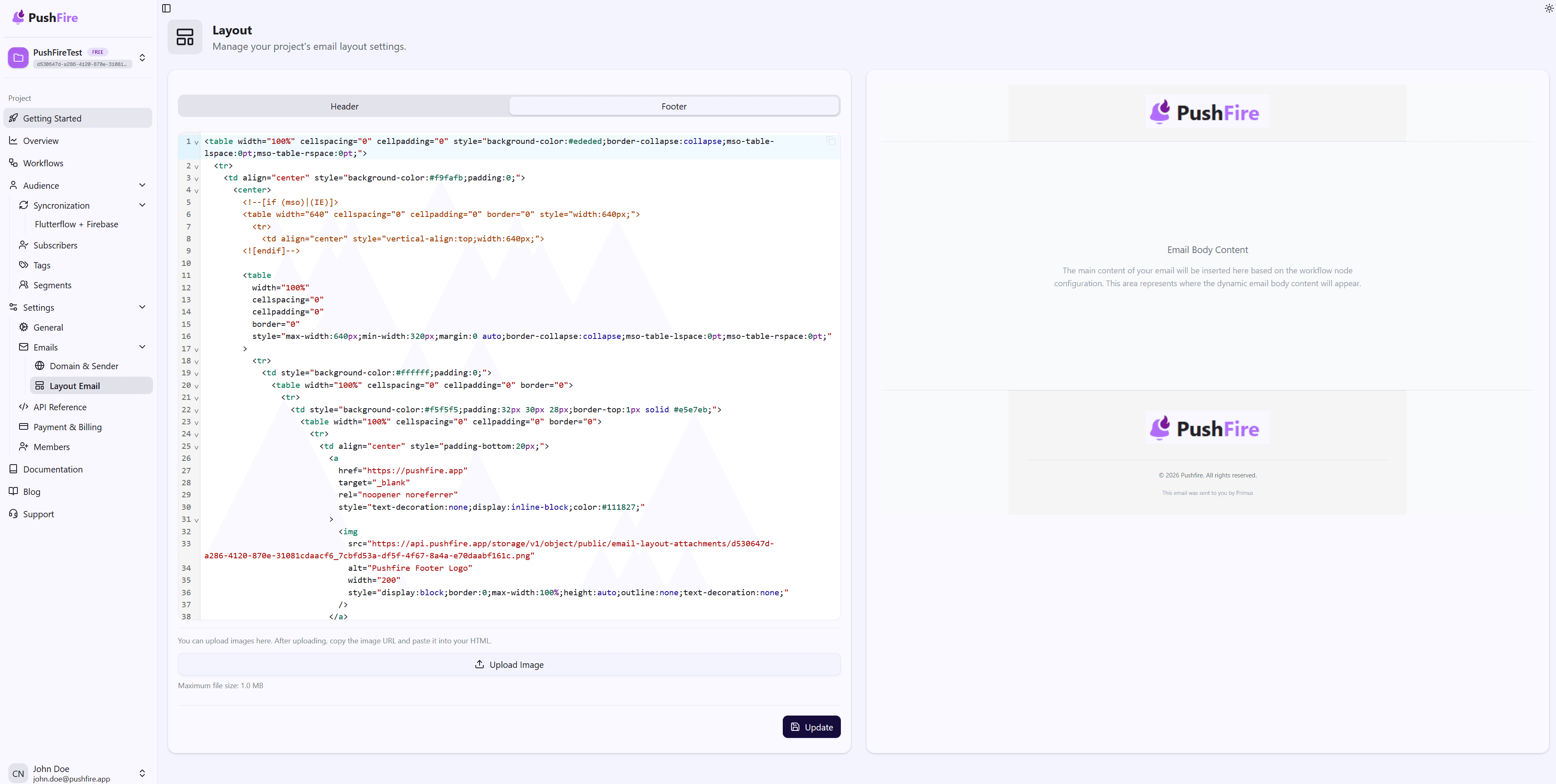
An email layout consists of two main components:
- Header: The top section of each email. It typically includes your logo, company name, and possibly a navigation menu or important links.
- Footer: The bottom section of each email. It usually includes contact information, legal links, subscription options, and social media links.
The specific content of each email (the subject and body you define in the Email Notification Node) is automatically inserted between the header and the footer, creating a complete and cohesive email.
Why Layouts Matter
A well-designed layout does several important things:
- Brand Consistency: Every email you send has the same visual appearance, reinforcing your brand identity and making your communications instantly recognizable.
- Professionalism: A polished and consistent design makes your emails look professional and trustworthy, increasing the likelihood that users will read them and take action.
- Efficiency: Instead of designing each email from scratch, you define the layout once and it is automatically applied to all your emails. This saves time and ensures consistency.
- User Experience: A familiar layout helps users navigate your emails and quickly find the information they are looking for.
Creating Your First Layout
Accessing the Settings
Go to the email settings section in your project and select Layout. If you don’t have a layout configured yet, you will see a form to create one.
Default Templates
PushFire provides default header and footer templates that you can use as a starting point. These templates are designed to be compatible with most email clients and follow email design best practices.
The templates include:
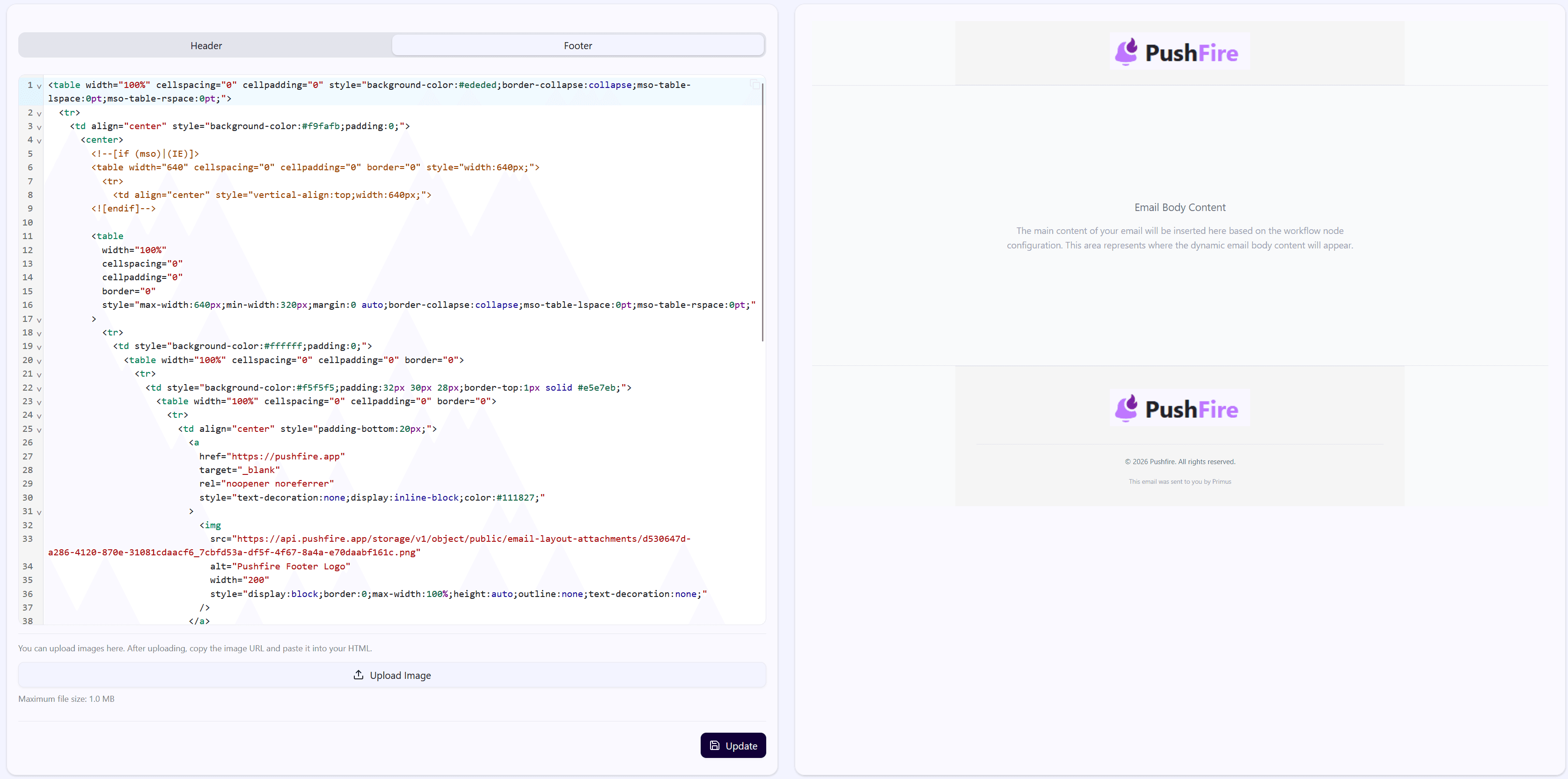
- Table-based HTML structure (the most compatible way to design emails)
- Inline styles (required because many email clients do not support external CSS)
- Spacing and typography optimized for readability
- Logo placeholders that you can replace
Configuring the Header
The header is the first thing users see when they open your email. It should be visually appealing without being overwhelming.
- Logo: Replace the logo placeholder with the URL of your actual logo. Make sure the logo is high quality and appropriately sized. A logo that is too large can dominate the email, while one that is too small can be hard to see.
- Colors: Customize the colors to match your brand. Use colors that are consistent with your website and other brand materials.
- Navigation: If you include navigation links in the header, make sure they are relevant and useful. Avoid overcrowding the header with too many links.
Configuring the Footer
The footer is where you place important but secondary information. It’s also where many users look for options like unsubscribing or updating preferences.
- Contact Information: Include basic contact information, such as a physical address (if relevant) or a link to your contact page.
- Legal Links: Many jurisdictions require certain legal links in commercial emails. This may include privacy policies, terms of service, and subscription options.
- Social Media: If you have a social media presence, include links to your profiles. This can help increase your reach on social platforms.
- Copyright: Include copyright information with the current year. This is standard practice and helps protect your content.
- Unsubscribe Option: Always include a clear way for users to unsubscribe from your emails. This is not only a best practice but also legally required in many jurisdictions.
Image Management
You can use PushFire’s Image Manager to upload images that you will use in your layout. Images are stored securely and can be referenced in your HTML using absolute URLs.
- Supported Formats: Use common formats such as PNG, JPG, or GIF. PNG is generally best for logos and graphics with text, while JPG works better for photographs.
- Appropriate Sizes: Make sure images are not too large. Large images slow down email loading and can cause issues with size limits imposed by some email providers.
- Alt Text: Always include alternative text (alt text) for your images. This improves accessibility and is also shown if the image fails to load.

Email Client Compatibility
One of the challenges of email design is that different email clients (Gmail, Outlook, Apple Mail, etc.) render HTML differently. Your layout must be compatible with most major clients.
- Table-Based HTML: PushFire layouts use HTML tables, which are the most compatible way to structure emails. This ensures your design looks good across most clients.
- Inline Styles: All styles are inline (directly on HTML elements) rather than in a separate style section. This is necessary because many email clients ignore external styles or styles defined in the head.
- Maximum Width: Content is limited to a maximum width (typically 600–640 pixels) to ensure it looks good across different screen sizes and email clients.
Security Restrictions
For security reasons, PushFire validates that your HTML does not contain potentially dangerous code:
- No Scripts: Script tags are not allowed. This prevents the execution of malicious JavaScript in emails.
- No Iframes: Iframes are not allowed, as they could be used to load unverified external content.
- No Inline Event Handlers: Event attributes such as onclick or onload are not allowed, as they could execute JavaScript code.
These restrictions protect both your users and your domain’s reputation.
Updating Your Layout
You can update your layout at any time. Changes will apply to all new emails sent after you save them.
- Real-Time Preview: While editing, you can see a preview of how the layout will look. This helps you make adjustments before saving.
- Testing: After creating or updating a layout, it’s good practice to send yourself a test email to see how it actually renders in different email clients.
Best Practices
- Keep the Design Simple: Simple designs are more compatible and easier to maintain. Avoid complex elements that may not work across all email clients.
- Use Your Brand Colors: Stay consistent with the colors used on your website and other brand materials to reinforce brand recognition.
- Optimize for Mobile: Many users read emails on mobile devices. Make sure your layout looks good on smaller screens.
- Include an Unsubscribe Option: Always provide a clear and easy way to unsubscribe. This is legally required in many jurisdictions and is also a best practice.
- Test Across Multiple Clients: Before using a layout in production, test how it looks in Gmail, Outlook, Apple Mail, and other major clients.
Next Steps
Once your layout is configured, you’re ready to start using the Email Notification Node in your workflows. The layout will be automatically applied to all emails you send, giving them a professional and consistent appearance.