Workflows
Workflows in PushFire are the most powerful way to automate your communications with subscribers. Imagine creating intelligent communication flows that automatically trigger when subscribers perform specific actions or meet certain conditions.
What Are Workflows?
A workflow is an automated sequence of actions that runs when a specific trigger is met. Think of them as digital recipes that guide subscribers through personalized experiences, from their first contact to becoming active and engaged subscribers.
With PushFire, you can create workflows that send emails, push notifications, wait for periods of time, evaluate conditions, and more—all without writing a single extra line of code.
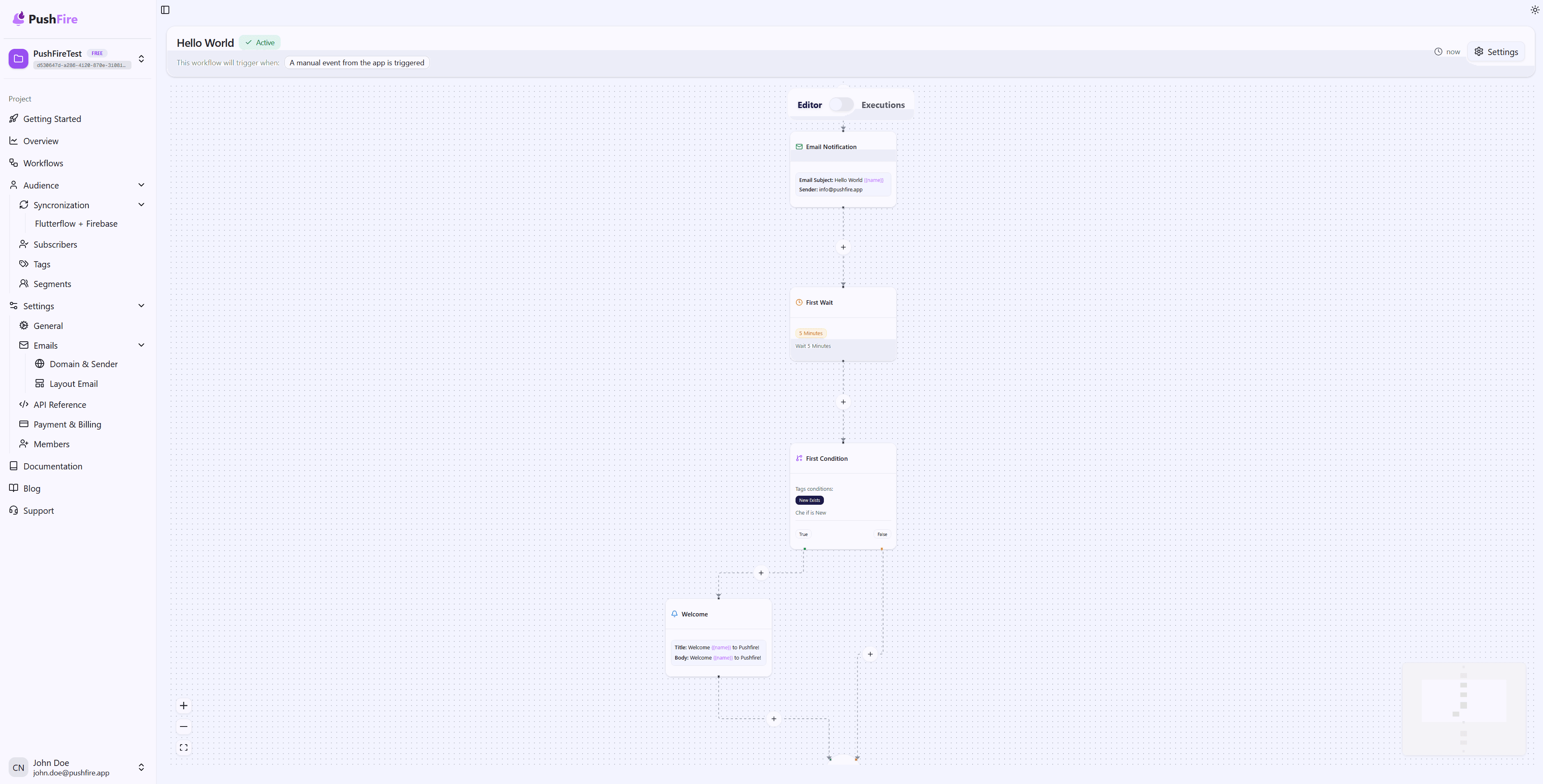
Why Use Workflows?
Workflows transform how you communicate with your subscribers. Instead of sending generic messages to everyone, you can create personalized experiences that adapt to each subscriber’s behavior and characteristics.
Key Benefits
Smart Automation: Once configured, your workflow runs automatically. No manual intervention is needed every time you want to communicate with a subscriber.
Personalization at Scale: Each subscriber receives relevant messages based on their behavior, preferences, and attributes, significantly increasing engagement and satisfaction.
Time Savings: Free up time to focus on other important areas of your business while workflows handle routine communications.
Better Conversion: Workflows guide subscribers through an optimized journey, increasing conversion and retention rates.
Workflow Components
Each workflow is made up of different types of nodes that work together to create a complete experience.
Workflow Types
Each workflow in PushFire has a type that defines when and how it is triggered. There are two available types:
A subscriber enters a segment
This workflow runs automatically when a subscriber enters a specific segment you configure. It’s ideal for building automated experiences based on subscriber behavior. For example, when a new subscriber enters the “New Subscribers” segment, you can automatically trigger an onboarding workflow to guide them through their first steps.
This type is perfect for welcome workflows, re-engagement, automatic segmentation, and any flow you want to trigger when subscribers meet certain conditions that place them into a specific segment.
A manual event from the app is triggered
This workflow is triggered explicitly from your application using the PushFire API. You have full control over when it runs, making it ideal for specific application events.
Use this type when you want to trigger workflows based on subscriber actions in your app, system events, or any moment where you need manual control over execution. For example, after a subscriber completes a purchase, you can manually trigger a workflow that sends a confirmation and updates their information.
Start Nodes
Start Node: This is the entry point of the workflow. It defines when and how the flow is triggered. It can be automatic (when a subscriber enters a segment) or manual (when triggered from the application).
Action Nodes
These are the nodes that actually perform communication tasks:
Email Notification: Sends personalized emails to your subscribers. Supports full HTML, dynamic parameters, and professional layouts.
Push Notification: Sends push notifications to mobile and web devices. Perfect for immediate alerts and reminders.
Control Nodes
These nodes let you create logic and control the flow:
Wait: Pauses the workflow for a specific amount of time or until a condition is met. Useful for spacing messages or waiting for subscriber actions.
Condition: Splits the flow into two paths based on conditions. Allows you to personalize the experience using tags, segments, or other criteria.
Join: Merges multiple workflow branches into a single point. Essential for building complex flows with multiple paths.
End Nodes
The End Node marks the end of a workflow branch. You can have multiple End Nodes for different paths.
Common Use Cases
New Subscriber Onboarding
Create a welcome sequence that guides new subscribers through their first steps. Send a welcome email, wait one day, send a push reminder, and continue with more educational content.
Re-engagement
Identify inactive subscribers and send them a series of messages designed to bring them back. Use conditions to personalize messages based on their previous activity level.
Event Notifications
Create workflows that trigger when important events occur, such as a completed purchase, an available update, or an unlocked achievement.
Automatic Segmentation
Use workflows to automatically move subscribers between segments based on their behavior, then send personalized content to each segment.
Getting Started with Workflows
Creating your first workflow is simpler than you think. You only need to:
- Define when it should trigger
- Add the nodes you want to execute
- Connect the nodes in the correct order
- Activate the workflow
No advanced programming knowledge is required. PushFire’s visual interface makes building complex workflows as easy as drag and drop.
Next Steps
Now that you understand the basics, explore the documentation for each node type to learn how to configure and use them in your own workflows. Each node includes a detailed guide with practical examples and best practices.
Related Guides
Continue learning with these related guides